With the SUBTOTAL function, we can automatically group data. We can then perform different operations on it, like SUM or COUNT.
Below we have number of sold fruits per month – categorized per fruit, and a calculated total per group.

Below is our original data, it is unsorted and no totals are present.
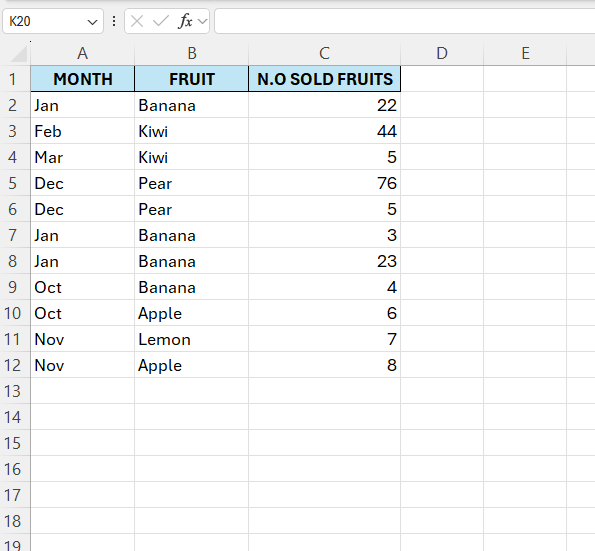
We need to sort this initially. Select the B column. Go to the “Home” tab. Then select “Sort & Filter” and choose “Sort A to Z“.
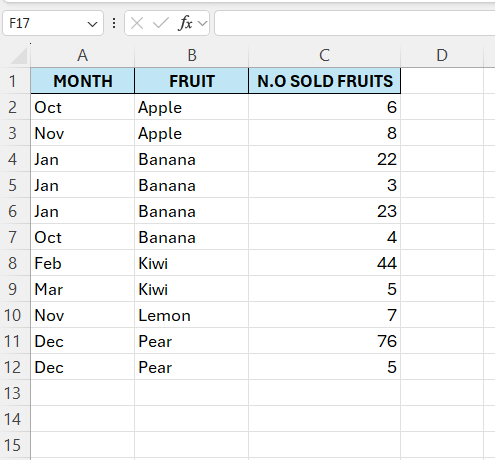
Now we are ready to create the Subtotals. Select any cell in the range. Go to the “Data” tab. Then, in the “Outline” group, select “Subtotal“.
A window will appear, make sure it looks like this:

Then hit “OK“
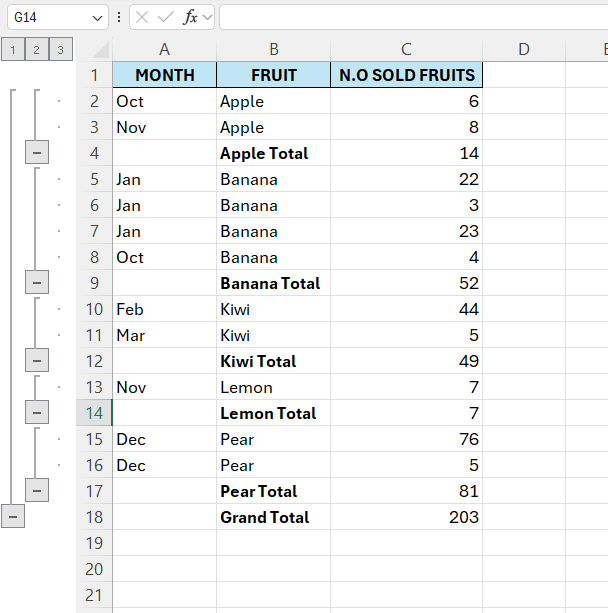
There we have it, on the left we now have group, all expanded. If we click on the numbers at the top, we can choose what we want to see. We can only choose to see the grand total for example.
 Excel tutorials
Leave a comment