A common task in Excel is to link values in cells together – to concatenate them.
One way to do this is to use the =CONCAT function.
To combine values from cells we will therefore use =CONCAT().
Lets try this with a simple example, open a blank excelsheet and enter some data in column A and column B.

Here we want the full name in column C – that is the value in column A and the value in column B – combined.
Select cell C2 – and enter the following formula:
=CONCAT(A2;B2)
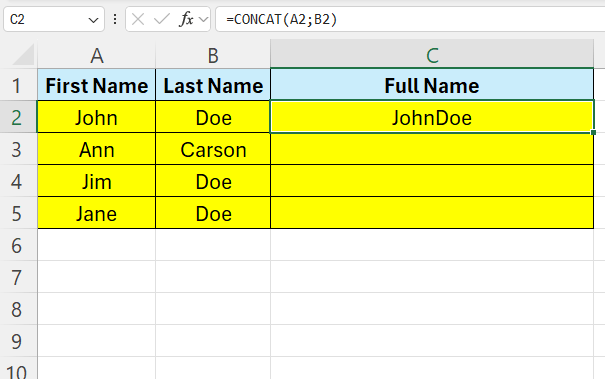
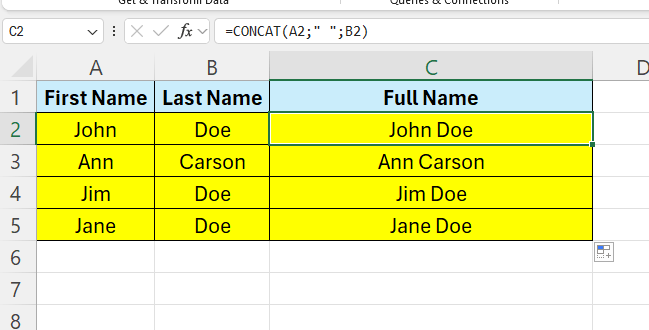
It worked – but we want to have a space between the names. We can easily add a delimeter, here we just want a space.
Adjust the formula in C2 in the following way:
=CONCAT(A2;” “;B2)
 Excel tutorials
Leave a comment