With data validation we can restrict what a user can enter into a cell. With the use of a drop down list we can force the user to make a choice, rather than manually enter a value.
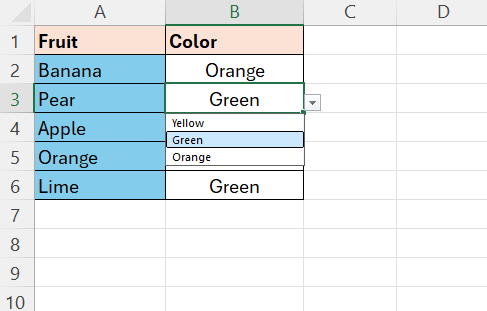
Above we have a list of defined fruits in column A, in column B the user have to make a choice for the color.
Follow these steps:
- In sheet1, enter the values like in the picture above
- Leave the values in column B blank
- In sheet2, enter the values for the colors in column A
- In sheet1, column B, select the cells where you want data validation to apply.
- Go to the Data tab
- Select Data Validation
- Select List in the Allow section
- As Source, enter the below formula
- =Sheet2!$A$1:$A$3
- This will fetch the values from sheet2 – in this case the values in cells A1:A3
Now in Sheet1, column B, the user have to make a choice from this list defined in sheet2.
 Excel tutorials
Leave a comment