If we format our data as a table in Excel we can perform calculations in a rather different way than standard cell formulas.
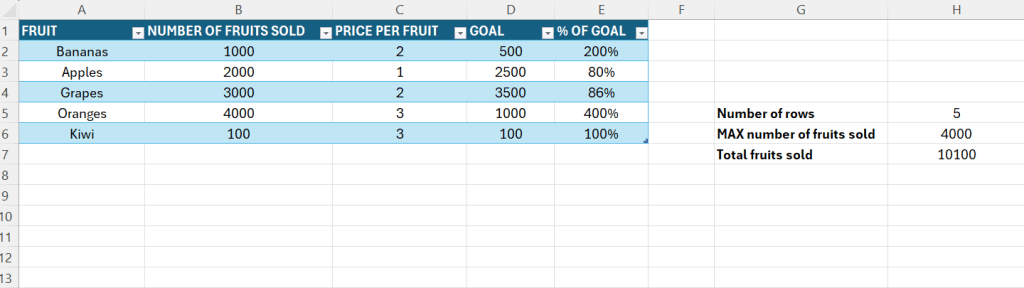
Follow below to set this up:
- Enter some date in a number of columns
- Select the data and hit CTRL+T
- This will format the data as a table
- Make sure that “My table has headers” is checked
- Create a new column as in Column E above
- Notice that this column automatically becomes part of the table
- We will now use something called structured references.
- In Cell E2, type =
- Then click on B2
- Then enter /
- Then click on D2
- Excel now automatically gives us this formula:
- =[@[NUMBER OF FRUITS SOLD]]/[@GOAL]
- Also note that the entire column gets calculated, this is one of the big advantages of this.
It is also possible to enter the formula manually like this:
=(Table2[@[NUMBER OF FRUITS SOLD]]/(Table2[@GOAL]))
 Excel tutorials
Leave a comment