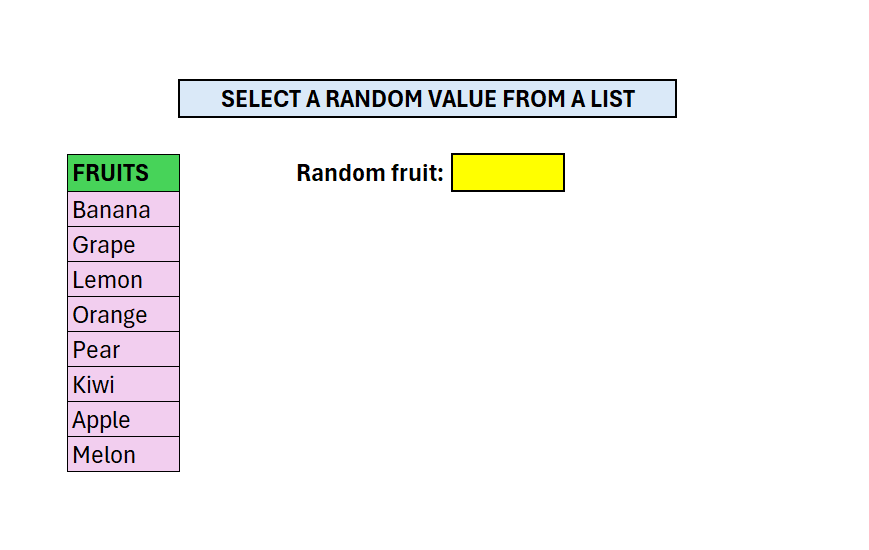
Above we have a column of different fruits, our goal is to select a random one from that list.
We will use a combination of 3 different formulas:
- =RANDBETWEEN
- =INDEX
- =ROWS
The first step is to calculate how many values we have, excluding the header
- We can do that with the ROWS function
- =ROWS(A2:A9)
- This will return 8 – as you can see there is 8 names in the column
- The next step is to pick a random number out of this
- We use RANDBETWEEN
- =RANDBETWEEN(1;H10)
- H10 above is the output from the ROWS function in step 2 above.
- If you hit F9 you will now get a new number every time
- We dont want to present the number, we want to present the actual fruit
- We use =INDEX
- We can now combine all the steps above into this:
- =INDEX(F7:F14;RANDBETWEEN(1;ROWS(F7:F14)))
 Excel tutorials
Leave a comment