A common task in Excel is to create a timeline to track the progress of a task or project.
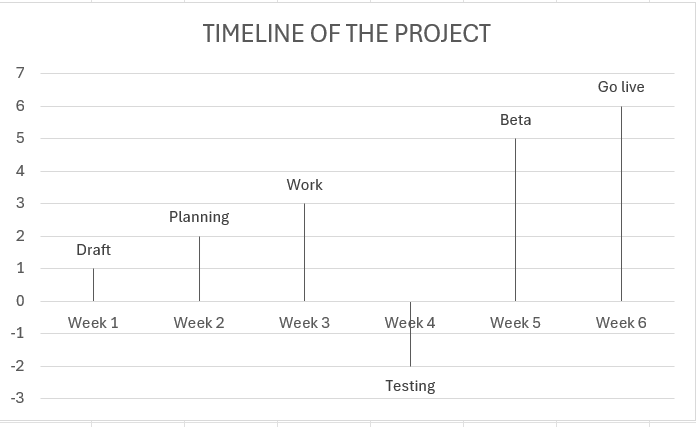
To achieve this do the following:
- Enter below data in columns B to D

- Select the values in B5:C10
- On the “Insert” tab, select “Clustered column”

- Hit the green plus sign on top right, click “Data Labels, then “More Options”
- Uncheck “Values” and check “Value From Cells”
- Then we have to enter our range, this is the values in our column D
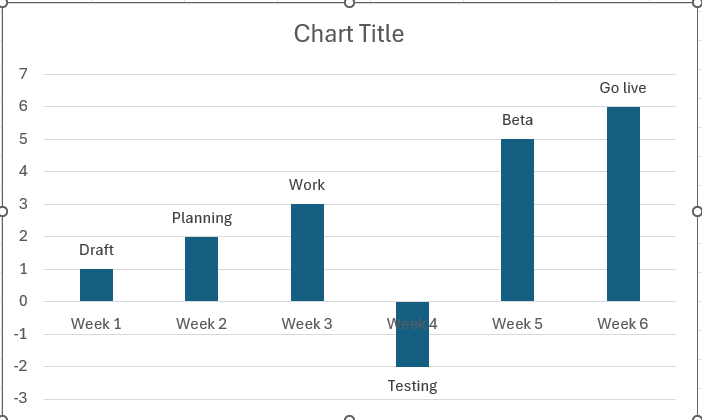
- Now we are done, the rest is just formatting actually.
- We can set the bar to have no fill, to make the bars look like lines.
- “Format Data Series” – choose “No fill”
 Excel tutorials
Leave a comment