Calculated columns in Excel are very useful for entering formulas. Instead of typing ranges or fill commands, we can enter a single formula in one cell.
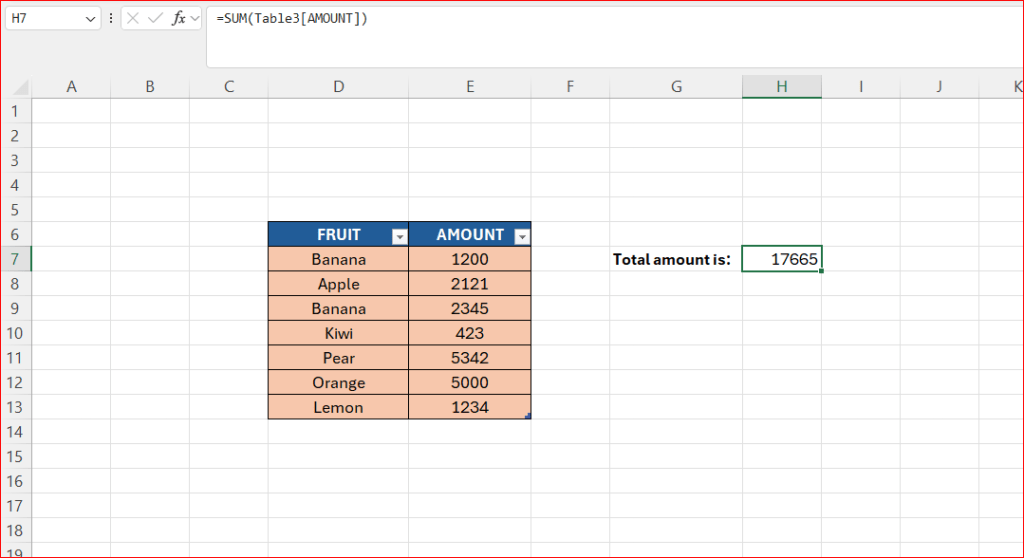
Our main goal is to calculate the total amount of all the fruits in the picture below.

Follow the steps below.
- Enter some data in two columns

- Make a table of it.
- Select a cell and hit CTRL+T
- Make sure you check the “Header” option.

- If this is the first table in your sheet, it will automatically be labelled Table1
- Now we can use the name Table1 and the name of the columns in our formula
- The formula will look like below
- =SUM(Table1[AMOUNT])
We use the aggregate function SUM to calculate the total SUM in the column named “AMOUNT“.
The name inside the brackets are our column-name.
 Excel tutorials
Leave a comment