Creating drop-down lists in Excel is very useful when you want the user to select a specific item.
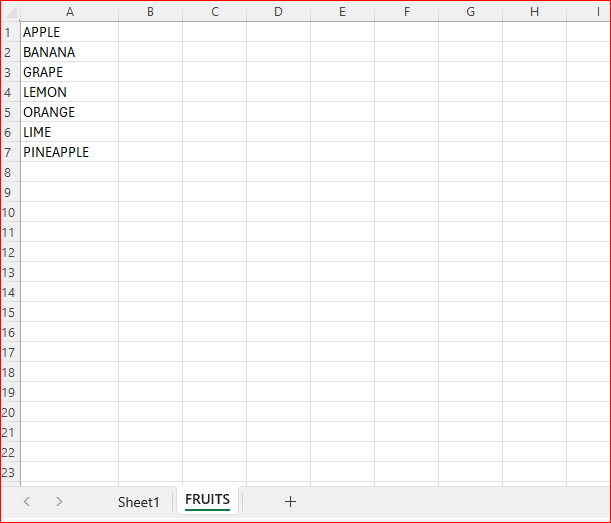
We are going to use 2 sheets here, on sheet two, create a list of items that you want to appear in the drop-down.
In the first sheet, type some text

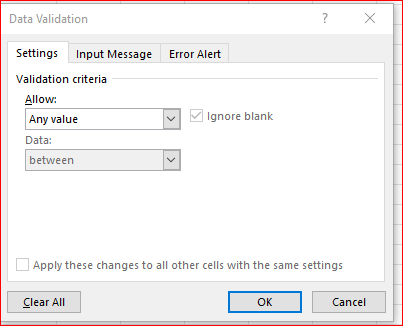
Now go to the Data tab – select “Data Validation“. This window will appear
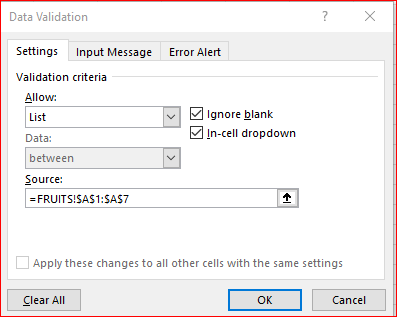
In the “Allow” – choose “List“
Set the source to the items in sheet2.
Click OK
And now we have our list of choice in Sheet 1:

 Excel tutorials
Leave a comment