In the previous post we saw how we could use a formula to remove duplicates. Excel also has an in-built feature that let us remove the duplicates.
Below we see a list of fruits, we can also see a lot of duplicates.
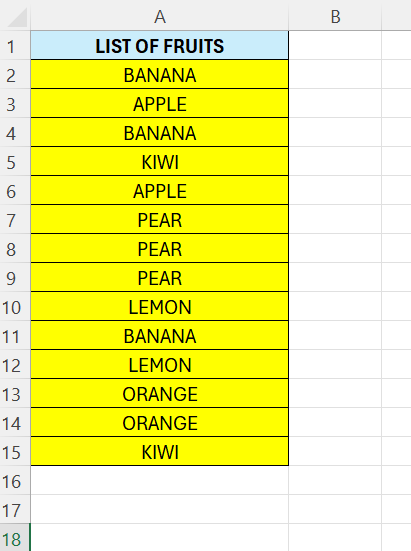
To remove them, select all the cells – including the header – and go to the “Data” tab.

There we have an option named “Remove Duplicates”. Click on that and a pop-up window will appear.

From here we can just click “OK”.
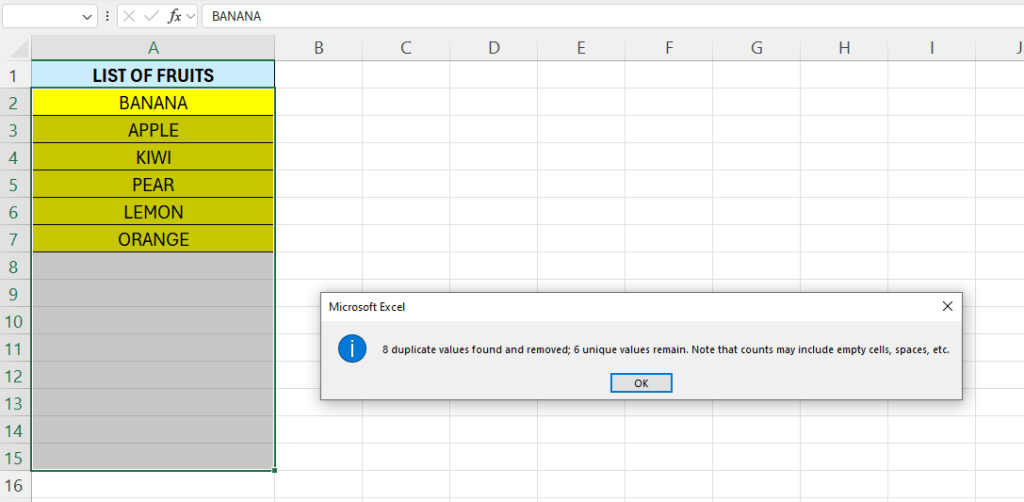
Some info shows up, hit “OK” and the duplicates are gone.
 Excel tutorials
Leave a comment