Often we need to search a range for a specific word. The result we want is whether the word is present or not.
To check if a value or a substring is present in a range we can use the SEARCH function. We will then combine this with the ISNUMBER function.
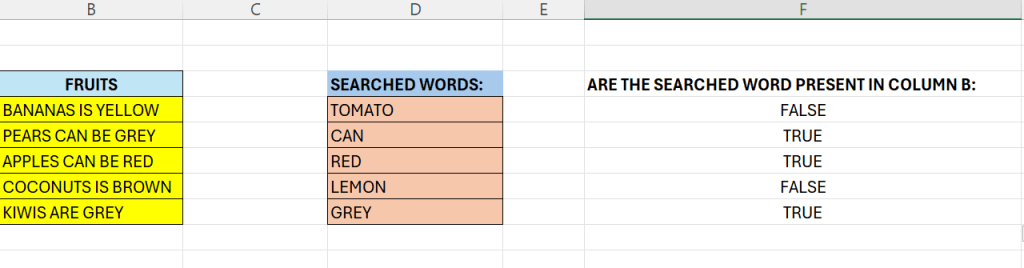
Above in column B, we have a list of sentences. In column D, there is a list of words that we want to search for. In column F we have the result from the formula.
Let us start with the SEARH – in F4 enter the below:
=SEARCH(D4;B4)
Above we search for the value “TOMATO” in cell B4. As we can see, there is no match, we get a “#VALUE”.
If we drag the above formula down, we get some numbers.
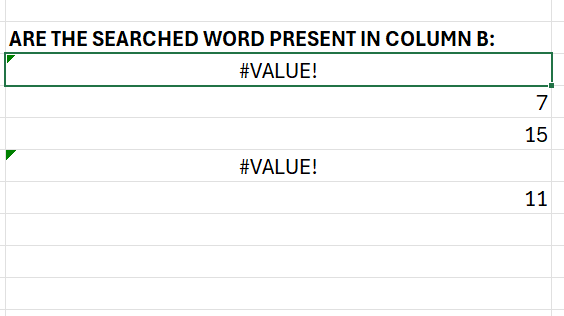
Those numbers indicate the start-position of the word that we searched for.
We do not want the position, we are only interested in if the word exists or not.
To do this, we can include the ISNUMBER function. This will return TRUE when there is a number above. It will return FALSE when there is not a number.
Extend the formula like this:
=ISNUMBER(SEARCH(D4;B4))

 Excel tutorials
Leave a comment