
One of the more common functions for looking up values is to combine =INDEX() with =MATCH()
Below we have a list of fruits, price and weight and color. We want to enter a fruit – then Excel should fetch the price for us.
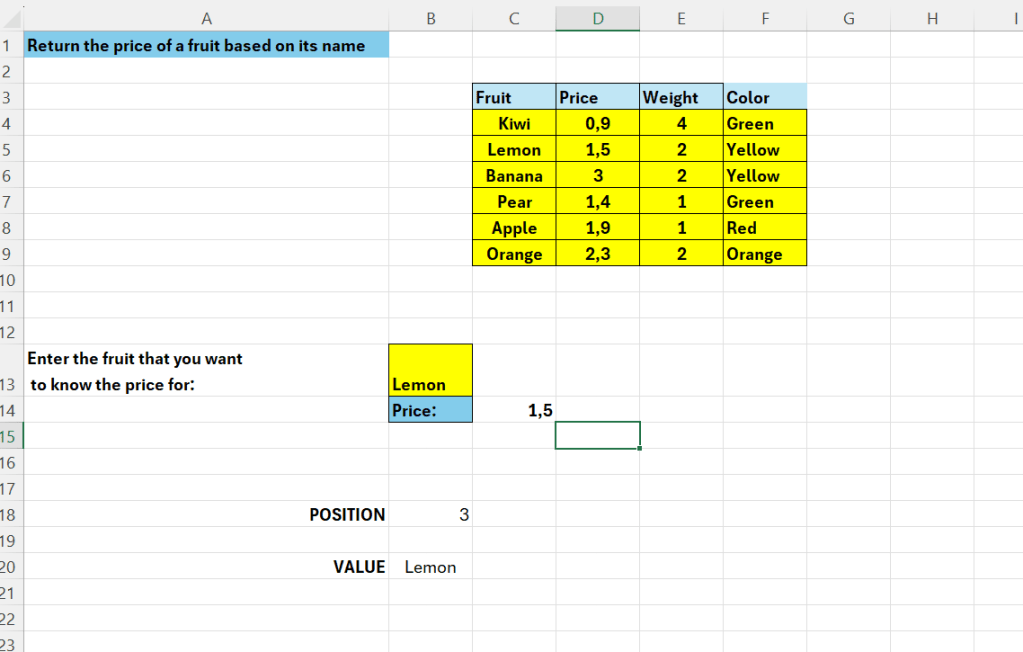
In B13 we enter a fruit that we want Excel to look-up for us- and in C14 – the price will show.
We can make the formula in chunks – first we can get the value using =INDEX()
=INDEX(C3:C9;B18;1)
This will give us the fruit – Lemon
The above searches in the range C3:C9, we supply the row_number – which is the value in B18 – which is 1
We use =MATCH() to look up this value
=MATCH(B13;C3:C9;0)
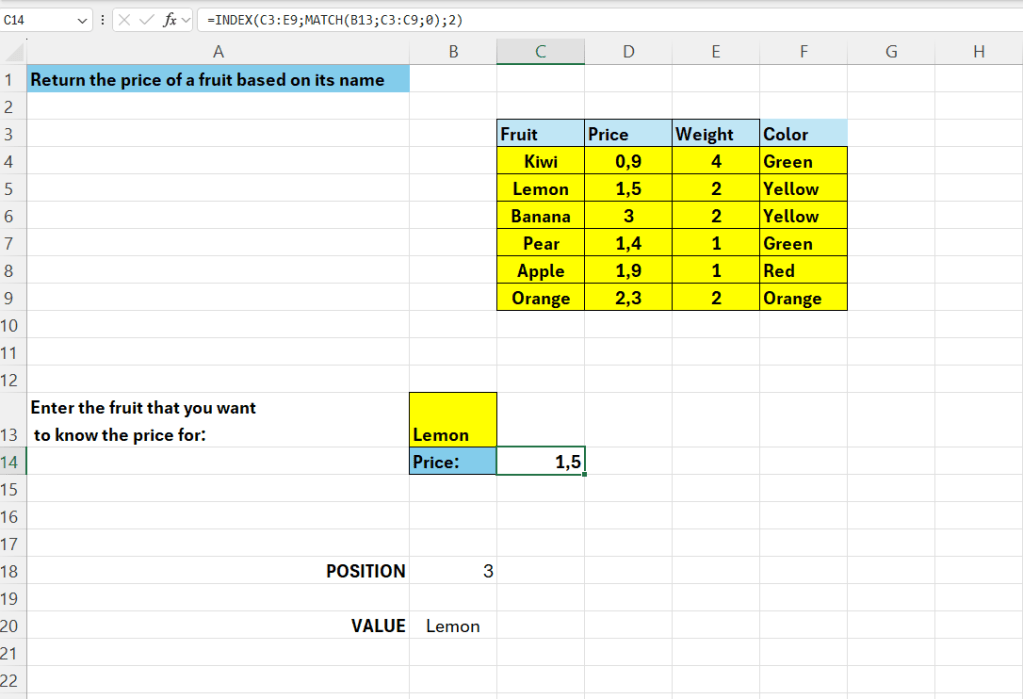
Then we can combine this in C14:
=INDEX(C3:E9;MATCH(B13;C3:C9;0);2)
The digit 2 at the end, is the column to search in – the column “Price”
 Excel tutorials
Leave a comment