
Sometimes we have a lot of text in a cell separated by some delimeter, like a comma. Often it is easier to split this up into columns instead – for readability and to make calculations.
Lets clarify how by a simple example:

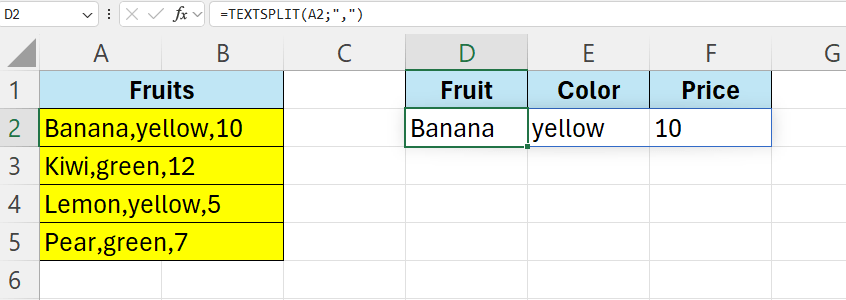
In column A we have words separated by a comma – we instead want each word to appear in a column – like above in Column D to F.
We are going to make use of the =TEXTSPLIT() function.
The first argument is the text, in this case A2 – the second argument is the delimeter we want to split on – in this case it is a comma.
In D2 – enter the below formula:
=TEXTSPLIT(A2;”,”)
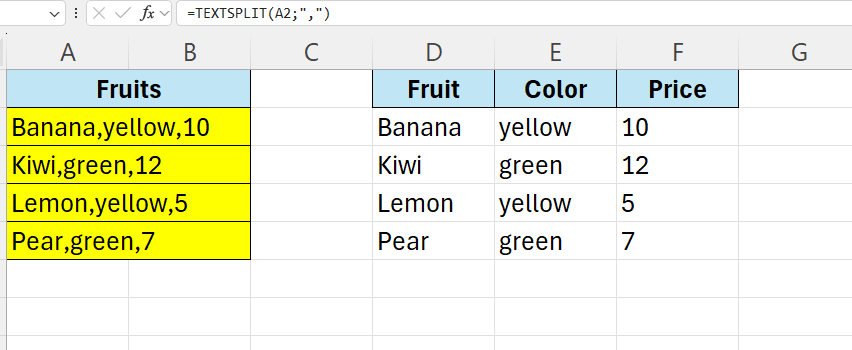
To fill down the test – select cell D2 and drag it down – then it will populate the rest of the cells.
 Excel tutorials
Leave a comment