
Sometimes we need to combine, or concatenate two or more cells in Excel, there are many ways to achieve this – in this part we are going to look at the =TEXTJOIN() function.
This function takes 3 parameters:
- A delimeter (space for example)
- Ignore empty (True or False)
- text1;text2,… (What to join)
Below I have a small example:

In column A and B we have first and last name – in column C we want the full name – that is column A and B merged together.
In cell C2 enter the following formula:
=TEXTJOIN(” “;TRUE;A2;B2)
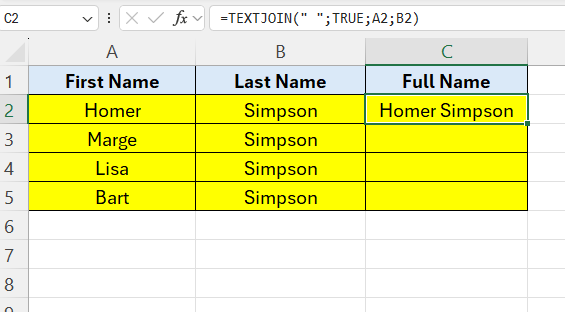
Then drag the formula down to fill the rest of the cells.
 Excel tutorials
Leave a comment