If we have a lot of names in Excel, to do sorting on this later on we often need to split full names into 2 separate columns
There is a text-to-column feature in Excel, but for large datasets this is more smooth.
Below is my data to play around with, we have some names in Column A and we want to split them up into Column B and C.
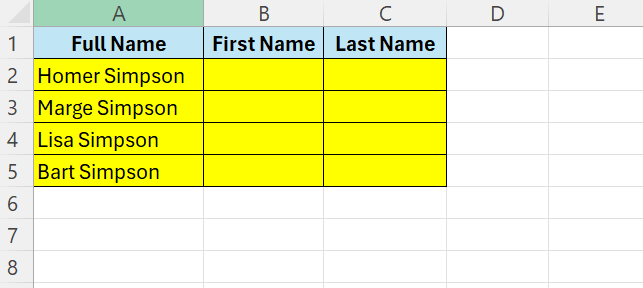
In this case our delimeter is space – if we have middle names this will not work.
Let us start with the extraction of the first name, here we will use =LEFT() and =SEARCH() functions together.
In cell B2 – enter the below:
=LEFT(A2;SEARCH(” “;A2)-1)
Here we are starting from the left – and identifies the position of the space using the =SEARCH() function. We then subtract 1 – to get rid of the space itself, then the =LEFT() extracts the number of characters from the beginning of the cell.
The formula reads like this:
=LEFT(A2-6)

To get the last name, we need to find the space position again, this is then used to find out the number of characters that are left after the space.
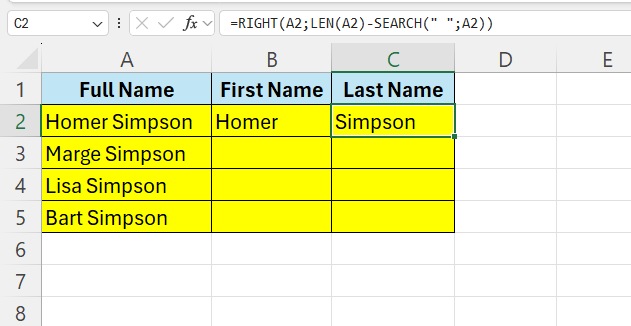
In cell C2 enter this:
=RIGHT(A2;LEN(A2)-SEARCH(” “;A2))
 Excel tutorials
Leave a comment