In the last posts we have seen how we can compare lists in a number of ways – to either show differences or similarities.
Lets put this together in a final example that shows the common values between lists, values that are in List A but not in List B, and vice versa.
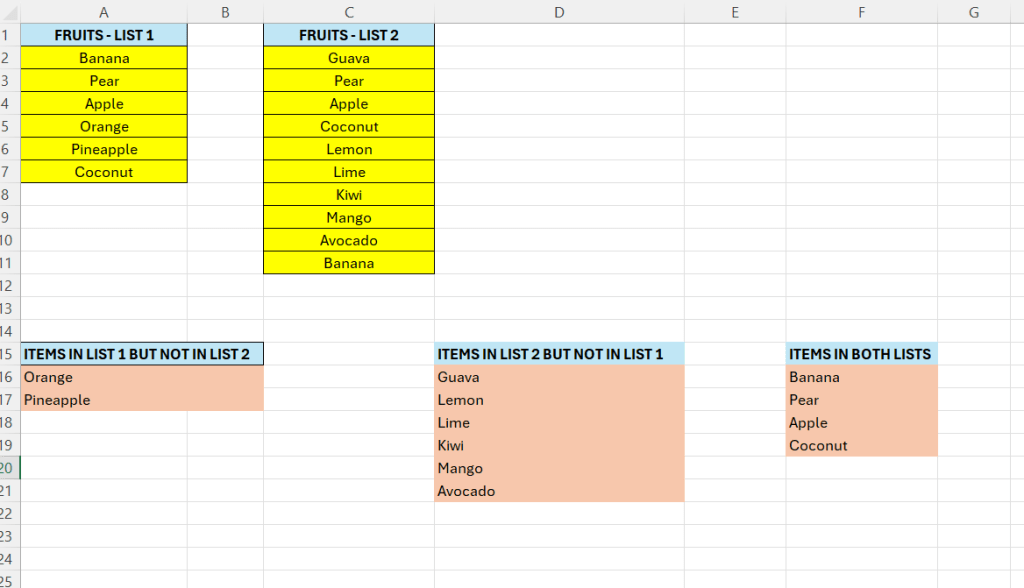
We have actually already seen how we can do this in the last couple of posts, but we can summarize them here.
To get all the fruits that are in the first list, but not in the second list – put the below formula in A16
This will filter values in the second list that only exists in list 2.
=FILTER(A2:A7;COUNTIF(C2:C11;A2:A7)=0)
The formula in D16 is almost the same, just flip the order in the COUNTIF formula
=FILTER(C2:C11;COUNTIF(A2:A7;C2:C11)=0)
To get the common elements between the lists enter the below formula in F16.
=FILTER(A2:A7;COUNTIF(C2:C11;A2:A7))
 Excel tutorials
Leave a comment