In the previous post we saw how we could compare lists or columns, row wise. In that post we used the equal operator. One problem with that is that it is not case-sensitive.
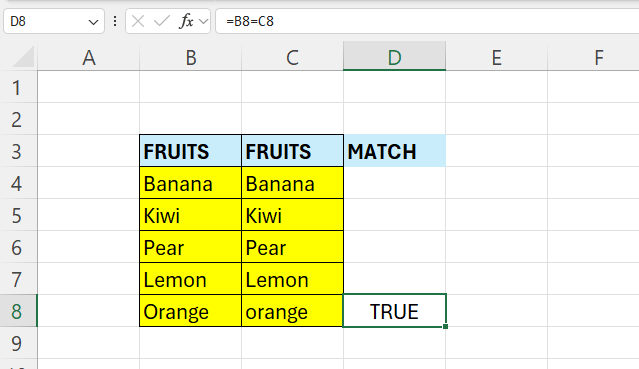
For example, below returns TRUE
Sometimes we do not want this – we want to take case of the text in consideration.
So, we can achieve this with the =EXACT() function
It works pretty much the same, in this case it will compare two cells with each other.
Enter the following formula in cell D4:
=EXACT(B4;C4)

As we can see, all of the cells match except the last one.
 Excel tutorials
Leave a comment