
In Excel we can use forumlas to count the numbers of words in a given cell. We will make use of a combination of different text-functions available in Excel.
In the image below – we have our word in cell C7 – how many words is there? Well, we can easily see that it is 8.

We will take this a step at a time. First we want to calculate the numbers of characters in C7. So in cell C10 – enter the following formula:
=LEN(C7)
The result is 40
Now we want to remove alla the spaces in C7 – so we will end up with a bunch of words without the spaces.
In C11 – enter the following formula:
=SUBSTITUTE(C7;” “;””)
Here we use the =SUBSTITUE formula.
The first argument is the text – in this case this is located in C7. The second argument is the old text – that is all the spaces within the text in C7. The third and last argument is the new text – and here we want no spaces at all.
As you can see below, the string now has no spaces between its words.
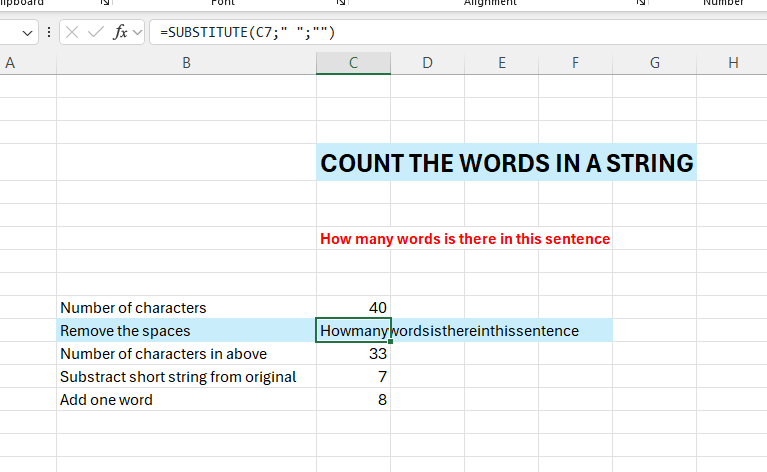
Now we need to calculate the number of characters in our new string – that one without the spaces. In cell C12 – enter =LEN(C11)
We got 33 characters here now.
Now we are going to substract this shorter string from the longer original string. That is 40-33.
In Cell C3 – enter the following formula:
=LEN(C7)-LEN(SUBSTITUTE(C11;” “;””))
This gives us 7.
But there is always one more word than spaces. If we have 2 words we have one space, if we have 3 words we have 2 spaces and so on, so we need to add 1.
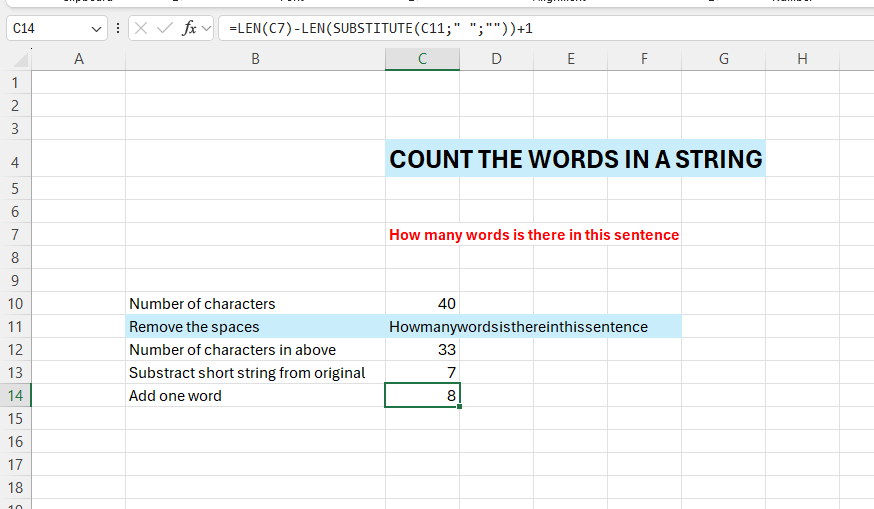
In cell C14 – enter the following formula:
=LEN(C7)-LEN(SUBSTITUTE(C11;” “;””))+1
And this is our complete formula
 Excel tutorials
Leave a comment