
In the previous part we saw how we can get the highest value in a range using the =MAX() operation.
In this part we are going to output the location of the highest score in a given range.
The final result are going to look like this:
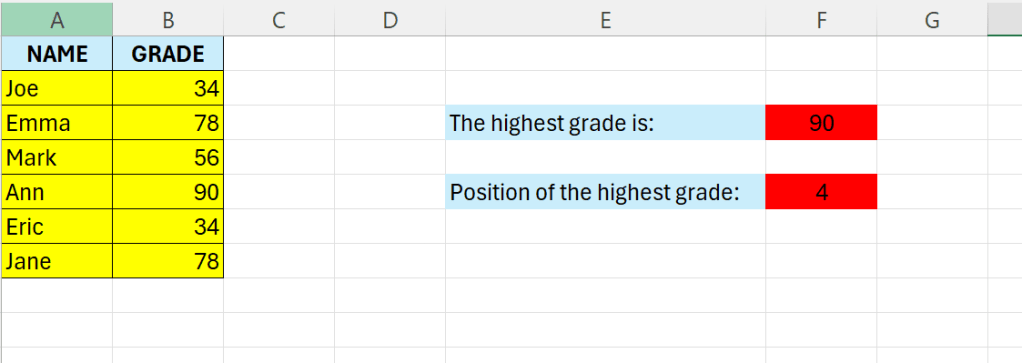
For details regarding the MAX-function – see the previous post.
Here we are going to combine the =MATCH() function with the =MAX() function.
The syntax is as follows:
=MATCH(lookup_value,lookup_array,[match_type])
- lookup_value – The value to match in lookup_array
- lookup_array – A range of cells
- match_type – [optional] 1 = exact or next smallest (default), 0 = exact match, -1 = exact or next largest.
Now, in cell F5 enter the following formula:
=MATCH(MAX(B2:B8);B2:B8;0)
The MAX function returns the maximum value in the range, and the MATCH function returns the position of the maximum in the given range.

 Excel tutorials
Leave a comment