
In this example we will look at how we can draw a random value from a list in Excel.
Start by entering a few values in column A – like below.
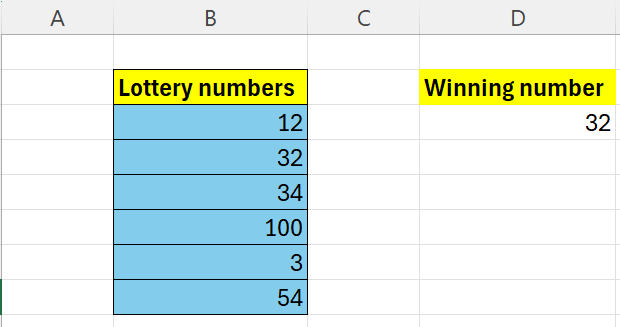
We are going to use two functions here to make this work
- =RANDBETWEEN()
- =INDEX()
The RANDBETWEEN generates a number between 2 specified values.
The INDEX returns the value at a given position of a list, or array.
So combining those gives us the following formula:
=INDEX(B3:B8;RANDBETWEEN(1;6))
Enter the above in cell D3.
Each time you hit F9 – a new value will appear.
 Excel tutorials
Leave a comment