
In this post we are going to see how we can make a simple random word generator.
For this we are going to make use of 2 functions:
- =RANDBETWEEN
- =CHOOSE
The Randbetween generates a value between a specified bottom value and a specified top value
=Randbetween(1:50)
The above generates a random number between 1 and 50.
We also need to make use of the =CHOOSE function – to select a number to show.
We need to specify the values that we are choosing from
In a cell, enter the following formula:
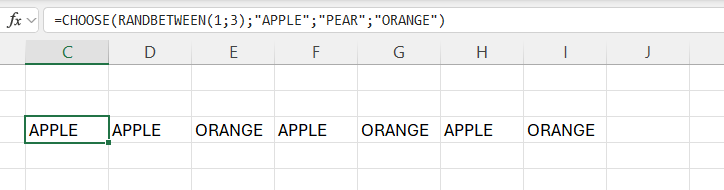
=CHOOSE(RANDBETWEEN(1;3);”APPLE”;”PEAR”;”ORANGE”)
You can drag the formula to generate more than one random value.
 Excel tutorials
Leave a comment