
Sometimes when we handle data we encounter blank rows, we can deal with them in many ways – here we are going to see how we can delete rows that are completely empty – that is all cells in the row are empty.
Start by entering some example data – like below for example:
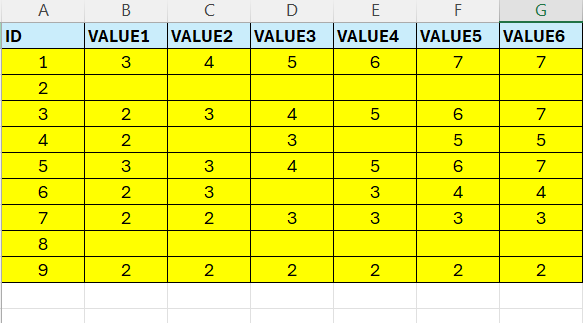
Above we can see that row ID 2 and 8 are all empty.
One approach for this is to create a helper column, call it Blanks or something.
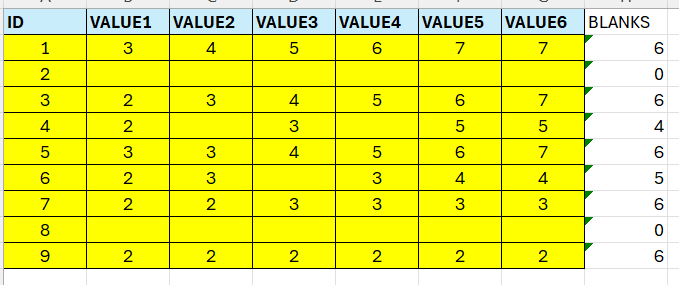
We are going to make use of the COUNTA function. This will return 0 if the row is completely empty.
Enter the following formula in H2:
=COUNTA(B3:G3)
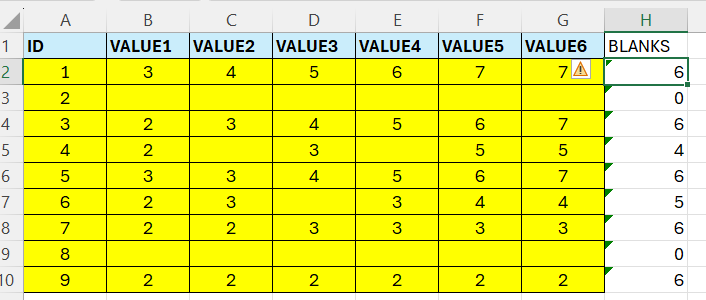
Row ID 2 and 8 gets a 0 – that is – they are empty.
Now we are going to apply a filter – select cell H1 – go to the Home tab – click on “Sort & Filter” – and click on “Filter“
Next click on the arrow in the Blanks column.
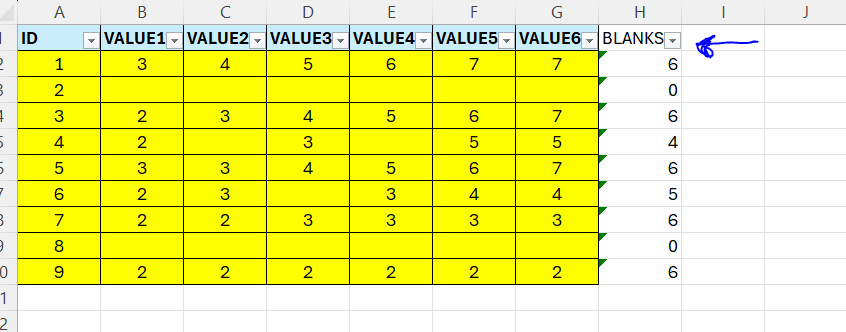
In the drop-down – select the 0 only. Then you will get the 2 blank rows.
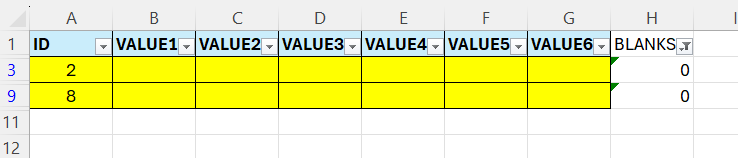
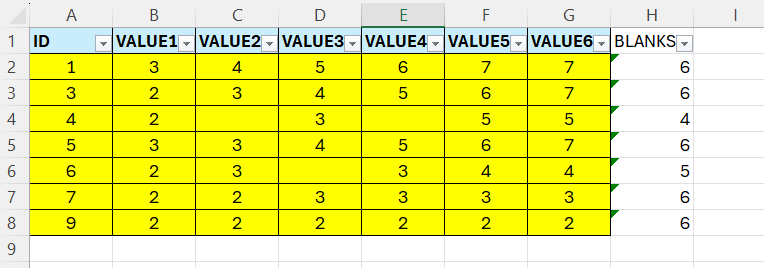
Now, simply delete those rows – then remove the filters – and now you have a dataset with rows with data only.
 Excel tutorials
Leave a comment